WebRTC, Minus the Headache
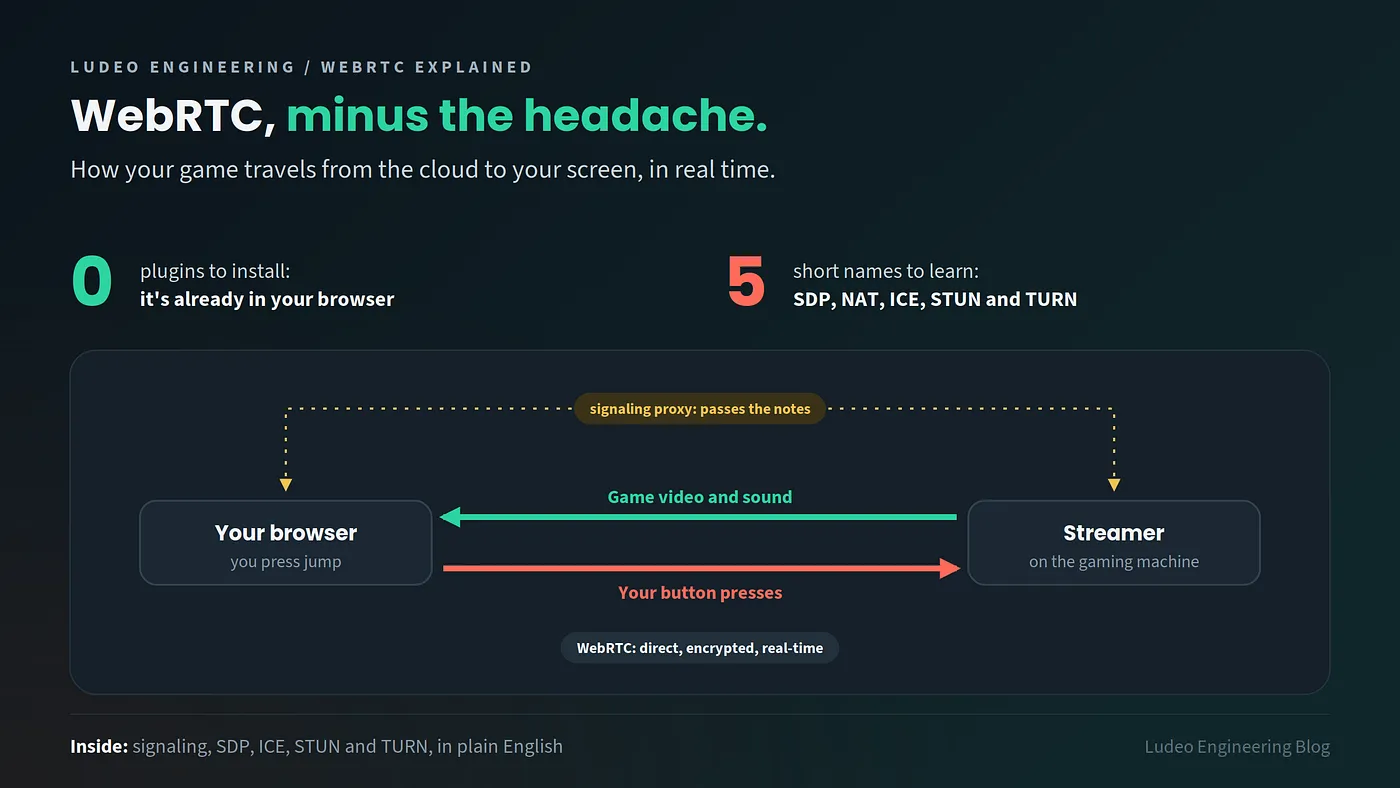
You press jump at home. The game runs in a data center far away. For that jump to land on time, two computers that can’t even see each other have to connect in the blink of an eye. Here’s how WebRTC pulls it off, in plain English, with a little help from pigeons, a smart toaster and a telephone operator.
What Is WebRTC, and Why Should Gamers Care?
WebRTC is a free, open web standard that’s built into your browser. It lets apps send video, sound and data straight between devices in real time. Google Meet uses it, Discord in the browser uses it, and cloud games like ours use it. And it’s not just for two people: a group call connects many browsers at once, either directly to each other or through a media server in the middle. The idea is simple. The rest of this post explains why it needs so many strange short names.
RTC stands for Real-Time Communication, and “real-time” is the important part. When you watch a movie online, a five-second delay is no problem. Nobody notices, because the movie only goes one way: your player quietly loads a few seconds ahead, and nobody is waiting for you to react. But on a video call, if your friend hears your joke five seconds late, the joke is dead. And in a game, if your jump arrives five seconds late, you’re dead.
That’s why WebRTC matters so much to us at Ludeo. Cloud gaming is one of the things we do: the game runs on a strong computer in the cloud, and you play it in your browser. Sounds simple, right? Not really. Every button you press has to reach the cloud fast, and every picture of the game has to come back fast. In games, slow means you lose. Usually to a 12-year-old.
The good news? You don’t have to install anything. No plugins, no downloads, no “please install Flash” (if you remember that one, hello, fellow dinosaurs). Let’s see how it works, in three easy parts.
Part 1: The Three Building Blocks
WebRTC gives developers three main tools in JavaScript. Each one has a clear job, and together they cover almost everything you need.
getUserMedia: camera and microphone. This tool turns on your camera and microphone. It’s the reason your browser shows that little “Allow this site to use your camera?” pop-up. At Ludeo, we don’t actually need it: our game server has no camera, so it records the game’s picture and sound instead.
RTCPeerConnection: the connection itself. This is the part that actually connects you to the other side (the other “peer”). It handles the setup you’ll see in Parts 2 and 3, like the offer, the answer and finding a path, and it keeps everything encrypted. You give it what you want to send (video, sound, or just one of them), and the other side receives it.
RTCDataChannel: game controls and other data. Not everything is video. Sometimes you want to send text, files or game controls. The data channel can send any data you like, using the same connection. For games, this is perfect: you can send “player pressed jump” with almost no delay. You can even decide if messages must arrive in the right order, or if it’s OK to lose a few to stay fast.
One more fun fact: everything in WebRTC is encrypted, always. You can’t turn it off, even if you ask nicely.
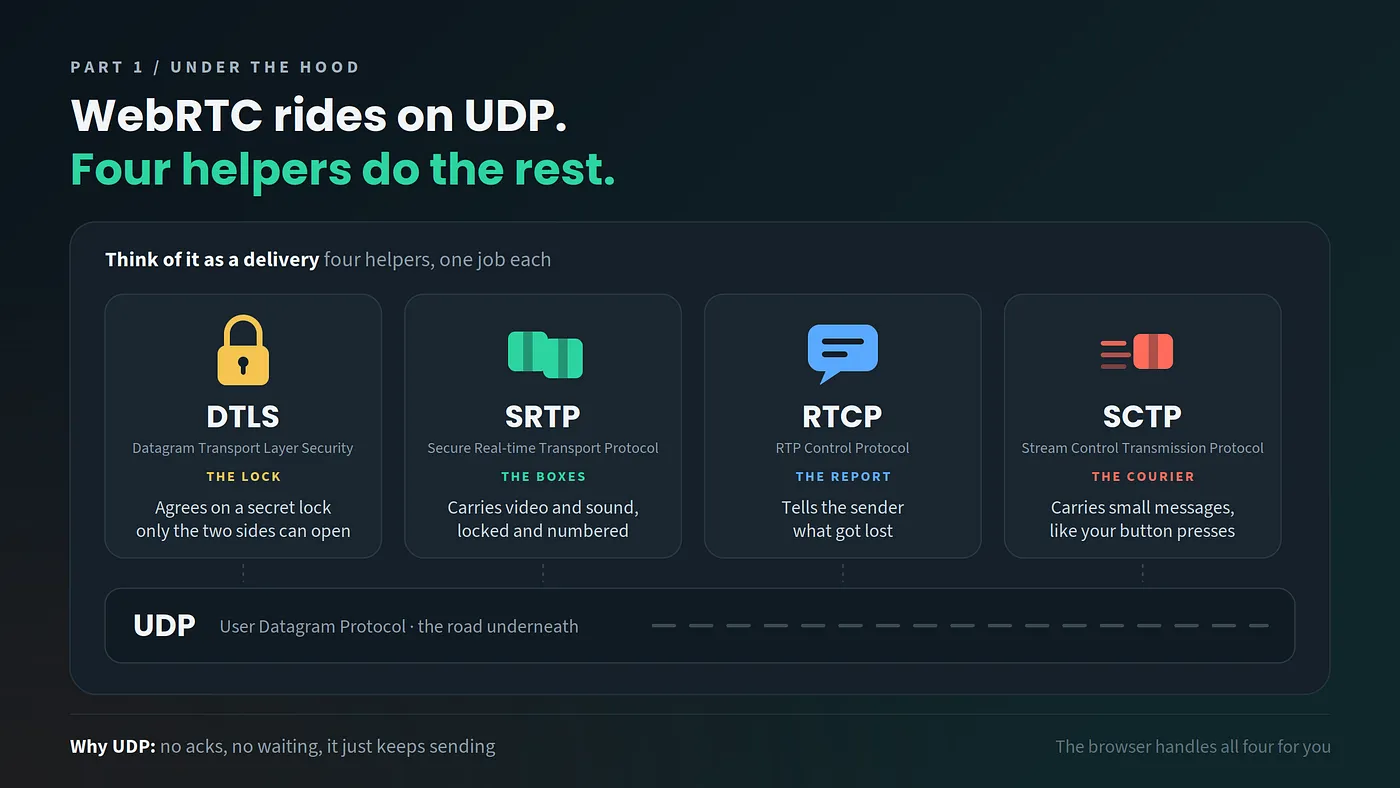
So how does it all travel? WebRTC can run over UDP (User Datagram Protocol) or TCP, and you can control which paths it uses. At Ludeo, we prefer UDP. Here’s why: TCP is the slow one. The receiver confirms every packet with an “ack”, and anything lost is sent again before the rest can move on. That’s great for loading a web page, but in a game, by the time a lost picture arrives, it’s already too late. UDP doesn’t wait. It just keeps sending, so the game keeps moving.
UDP is just the foundation, though. On top of it, WebRTC uses four more protocols, each with one job. Think of it as a delivery: DTLS agrees on a secret lock that only the two sides can open, SRTP carries the locked boxes of video and sound, RTCP reports what got lost, and SCTP carries small messages, like your button presses. Each one deserves its own blog post, so dive deeper if you’re curious.
Part 2: Signaling, Where Every Call Begins
Here’s the problem. WebRTC connects two peers directly. At Ludeo, that’s your browser and the streamer on a gaming machine in the cloud. But before they can connect, they need to share some information. And to share information, they need to be connected. It’s like needing a key to open the box that has the key inside.
The answer is signaling: a small server that works like a broker. It passes messages between the two peers until they agree on a deal, and then it steps aside so they can talk directly.
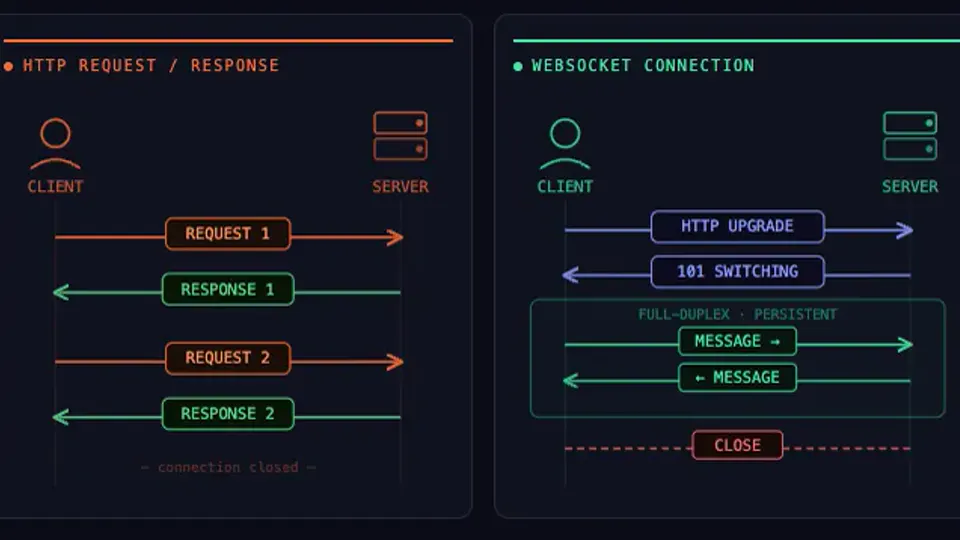
The strange part? WebRTC doesn’t care how you do signaling. WebSockets, HTTP, a chat app, a pigeon. Anything is fine, as long as the notes arrive. Most people use WebSockets, which keep a two-way line open between the browser and a server, because pigeons are slow and really hard to debug. If WebSockets are new to you, this post is a great place to start.
Ludeo’s Signaling Proxy
At Ludeo, our broker is called the signaling proxy. Picture a telephone operator from an old movie, sitting in front of a big board full of cables. The operator doesn’t listen to your call. They just plug your cable into the right place and let you talk.
Here’s its job, step by step:
- Our backend finds a free gaming machine for your game. It sends your browser two things: the address of the signaling proxy, and a list of STUN and TURN servers it will need later.
- Your browser opens a secure WebSocket to the signaling proxy. The address includes the ID of your gaming machine, so the proxy knows exactly where to plug in your cable.
- The proxy passes the notes back and forth between your browser and the streamer on the gaming machine: the offer, the answer and the ICE candidates. (Don’t worry, we’ll explain all three soon.)
- Once the WebRTC connection is ready, the game video and your controls travel directly between the two sides (or through TURN). The proxy’s job is done, and it quietly leaves the call.
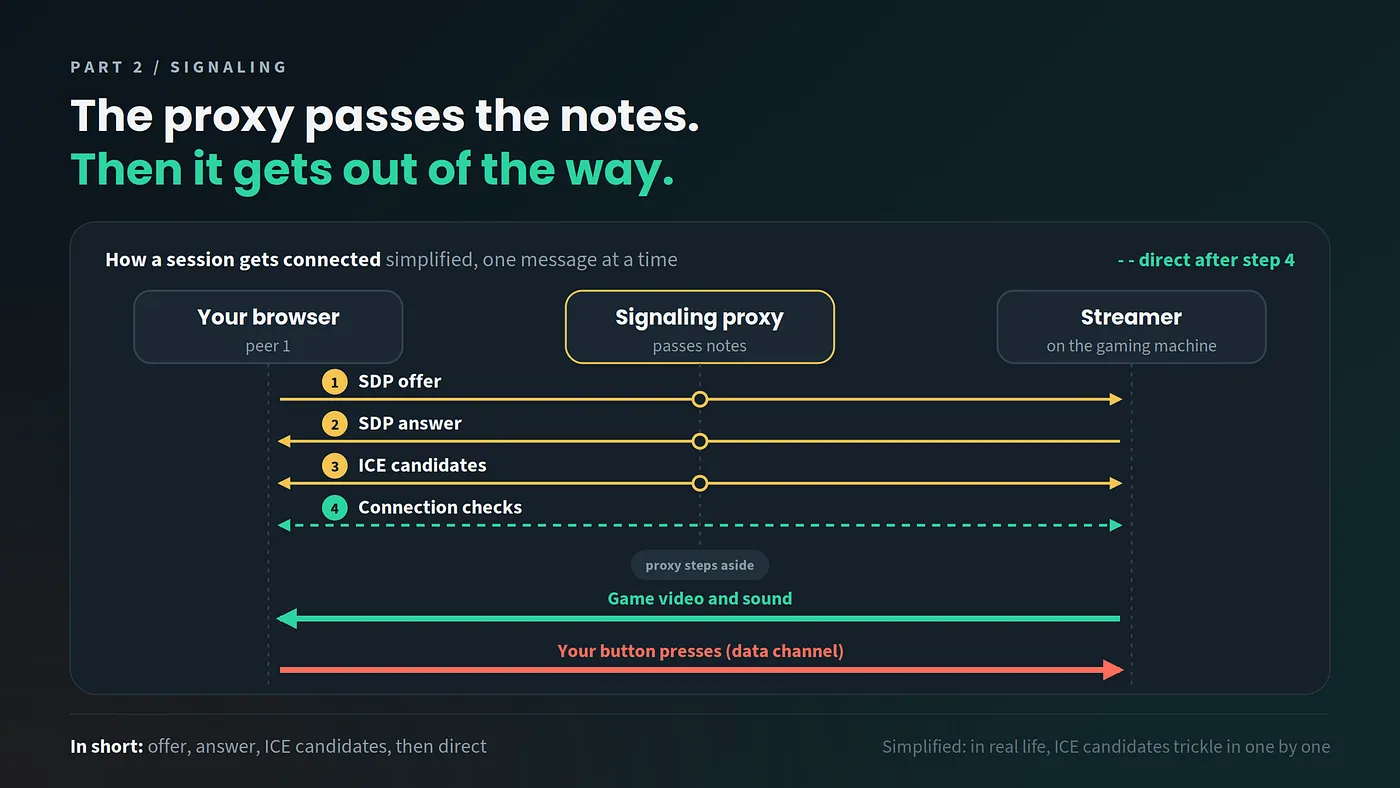
We run a few proxies, so every browser always has a stable “front door”, even though the gaming machines behind it come and go all day. And it’s not just one door. The proxies run in several availability zones (separate data centers in the same area), so if one of them has a bad day, the others keep working. High availability, backups, failover: all those boring words that just mean you keep playing.
SDP: The “Here’s What I Can Do” Note
The notes are written in SDP (Session Description Protocol). An SDP message says what a peer can do: “I can send video, I understand these video formats, and here’s my security info.” Here’s the offer our streamer sends to your browser. The real one is much longer, with way more details about packet recovery, network feedback and security, so I kept only the lines that matter here:
v=0
o=- 519595617307026549 0 IN IP4 0.0.0.0
s=-
t=0 0
a=group:BUNDLE video0 audio1 application2
m=video 9 UDP/TLS/RTP/SAVPF 96
a=ice-ufrag:46Tz...
a=ice-pwd:rr9b...
a=fingerprint:sha-256 78:91:33:54:...
a=sendrecv
a=rtpmap:96 AV1/90000
m=audio 9 UDP/TLS/RTP/SAVPF 111
a=sendrecv
a=rtpmap:111 OPUS/48000/2
m=application 9 UDP/DTLS/SCTP webrtc-datachannel
Yes, it's ugly. It was designed in the 90s, and you can tell. The good news is that you almost never have to read it. The browser writes it and reads it for you.
Still, a few lines are worth knowing:
- m=video, m=audio and m=application are the three parts of our stream: the game picture, the game sound, and the data channel that carries your inputs.
- a=rtpmap names the format of each part: in this example, AV1 for video (sharp picture, less data) and Opus for audio, at 48 kHz in stereo. The video format can change depending on your browser and device.
- a=group:BUNDLE puts video, audio and data on one single connection.
- a=ice-ufrag and a=ice-pwd are a short username and password for the ICE checks. a=fingerprint is the ID of the security key, so both sides know the encryption is real.
- a=sendrecv means "traffic can go both ways." Keep an eye on this one, because the answer changes it.
Offer and Answer
Alice and Bob are just two WebRTC peers. Each one can be a browser, a phone app, or a server like our streamer. WebRTC doesn’t care. The exchange works a bit like dating:
- Alice makes an offer. She writes an SDP note that lists everything she can do: video, sound, data, the formats she supports, and her security info. She keeps a copy for herself (her “local description”) and sends the note to Bob through the signaling server.
- Bob gets the offer. He saves Alice’s note as the “remote description”, so he knows what the other side can do.
- Bob answers. He compares the offer with what he can do, picks the things they both support, and writes an answer. It basically says: “Cool, let’s use these.” Bob keeps a copy as his own local description and sends it back.
- Alice saves Bob’s answer as her remote description. Now each side has two notes: its own and the other side’s. Deal done.
Here are the most important lines from the answer to the offer above (the full answer is much longer):
m=video 9 UDP/TLS/RTP/SAVPF 96
a=recvonly
a=rtpmap:96 AV1/90000
m=audio 9 UDP/TLS/RTP/SAVPF 111
a=recvonly
a=rtpmap:111 OPUS/48000/2
m=application 9 UDP/DTLS/SCTP webrtc-datachannel
Put it next to the offer and you can see the deal being made:
- Same formats: the browser says yes to AV1 for video and Opus for audio.
- a=recvonly: the offer said “sendrecv”, and the browser answers “I’ll only receive.” So the streamer sends the picture and sound, and your browser just watches and listens. Your inputs still go back through the data channel.
Now both sides agree on what to send. But wait, they still don’t know where to send it. That’s the biggest problem of all, so it gets its own part.
Part 3: Finding a Path (NAT, ICE, STUN and TURN)
To send data to someone on the internet, you need their address: their IP address. You’d think every computer knows its own address. Plot twist: yours probably has no idea what its public address is.
NAT: The Problem
At home or at the office, all your devices (your laptop, your phone, even your smart toaster) share one public IP address. The router hides them all behind it. This trick is called NAT (Network Address Translation). Your laptop thinks its address is something like 192.168.1.5, but that’s only a private address that works inside the network. Nobody outside can use it.
It’s like living in a big apartment building. Your friend knows the building’s street address, but not your apartment number. And the doorman doesn’t let strangers in. Very safe. Also very annoying.
ICE: The Path Finder
ICE (Interactive Connectivity Establishment) is the system that finds a path that works between the two peers. It makes a list of possible addresses, called ICE candidates, and tries them until one works. Each side sends its candidates to the other through the signaling server, one by one, as soon as it finds them. It doesn’t wait for the offer and answer to finish. This is called “trickle ICE”.
ICE gets its candidates from four places, and each type has a short, slightly weird name:
- host: your device’s own local address, like 192.168.1.5. It usually only works when both sides are on the same network.
- srflx (server reflexive): your public address, as the outside world sees it. A STUN server tells you what it is (more on that in a moment).
- prflx (peer reflexive): an address ICE discovers by surprise while testing paths.
- relay: an address on a TURN server, which passes your data along.
So how does ICE choose? It gives every candidate a score: host scores highest, then prflx and srflx, and relay lowest. Then it tests pairs (one of your candidates plus one of theirs), best score first, and picks the best pair that actually works. It doesn’t measure which path is fastest. It simply prefers direct paths, because they’re usually shorter, faster and free, and keeps relay for last. The prflx candidate is the surprise guest: nobody invited it, but sometimes it’s the one that works.
A high score doesn’t always mean a good path. We saw this with players on VPNs. A VPN gives the device a second network connection, so ICE collects candidates on both: the normal one and the VPN one. Sometimes ICE picked the path through the VPN. It worked, kind of, but all the game traffic took a detour through the VPN server. Like driving from London to Paris through Tokyo. The fix was to filter out those extra candidates, so ICE picks the normal, direct path. More candidates isn’t always better.
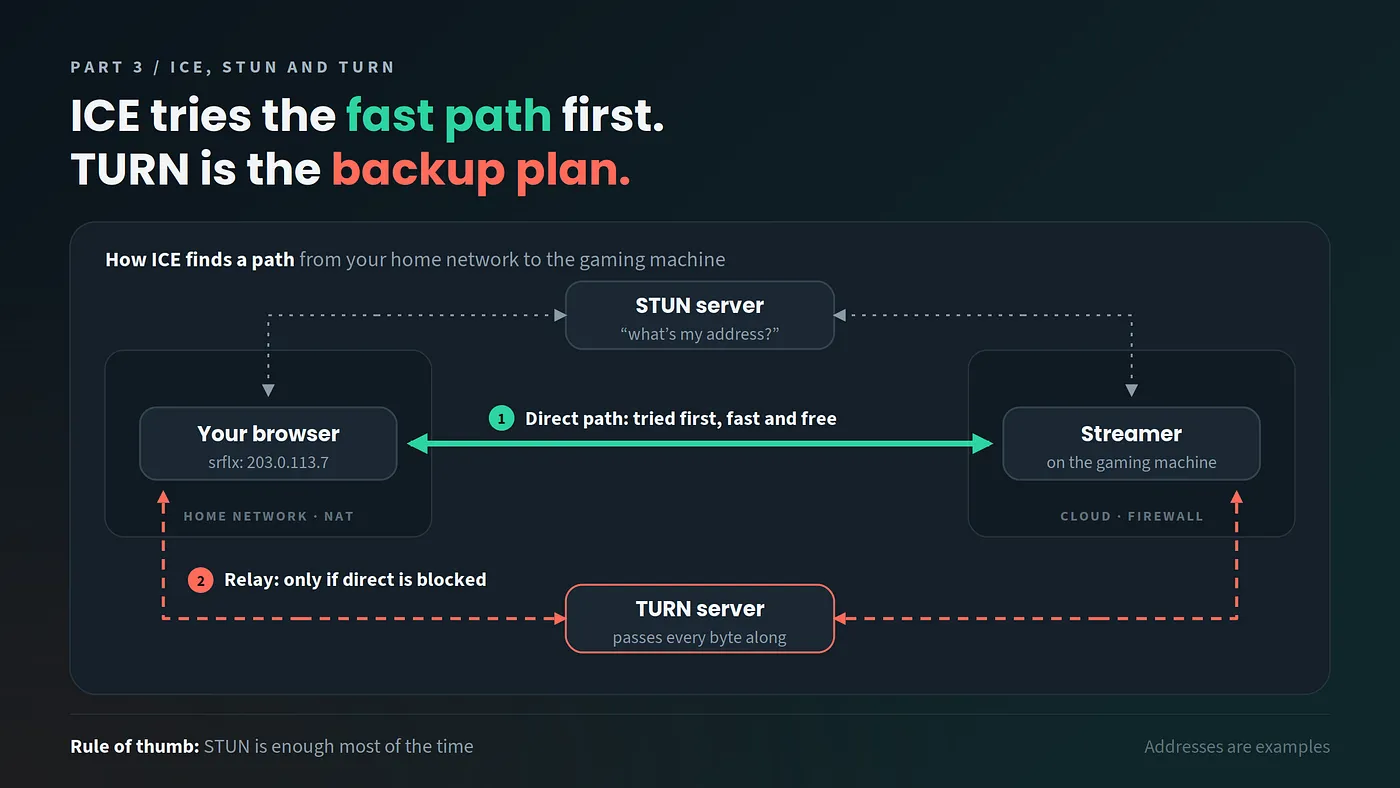
Still, ICE has two problems it can’t solve alone. First, your device only knows its home address. It has no way to find its public address by itself (remember the doorman?). Second, sometimes there’s no direct path at all, because a strict firewall blocks everything. So ICE calls two helpers: a STUN server, which tells you your public address (that’s your srflx candidate), and a TURN server, which passes your data along when nothing else works (that’s your relay candidate).
STUN: The Mirror
A STUN server answers just one simple question: “What’s my public address?” Your browser asks, and STUN replies: “From out here, you look like 203.0.113.7, port 54321." Now your browser knows its public address and can share it. STUN servers are cheap to run because they only answer questions. They never carry your video. Often, STUN is all you need to connect.
TURN: The Backup Plan
Sometimes the network is too strict. Some office firewalls block almost everything, like a doorman who hates fun. When that happens, a direct connection just isn’t possible.
That’s where TURN comes in. A TURN server is a middleman: both sides send their data to it, and it passes the data on. It always works, but it isn’t really peer-to-peer anymore. It adds a bit of delay, and it costs money, because the server has to carry all the video. So TURN is the last option, not the first.
- STUN tells you your public address. It never carries your video, so it’s cheap: it only answers one tiny question per connection.
- TURN passes all the data along when the direct path fails. It carries every bit of the game stream, so it’s expensive: cloud providers charge for that traffic, plus you pay for the servers.
ICE tries the direct paths first and uses TURN only if nothing else works. Smart, lazy and cheap. Just like all good engineers.
Wrapping Up
WebRTC peers send video, sound and data straight to each other, in real time. But first, they need a broker. Through signaling, they swap two SDP notes, an offer and an answer, and agree on what to send. Then ICE works out where to send it. It collects possible addresses, asks STUN for the public one, tests the paths, and keeps the best one that works. If a strict network blocks every direct path, TURN steps in as the expensive backup. And the whole time, everything stays encrypted.
That’s WebRTC, minus the headache. A broker, a few notes, a mirror and one expensive backup plan, all working together so a game running in a data center feels like it’s running on your desk.
Next time a video call freezes, you’ll know exactly which short name to blame. And next time you play something on Ludeo, you can enjoy the best part: not thinking about any of this at all.
Want to see it for real? Go to ludeo.com, press play, and try it yourself. No plugins, no setup, and no need to think about any of the stuff above.
And here’s the fun part: you can create your own Ludeo too. Here’s one I made. Give it a go and see if you can beat me (TOMER[‘G])!
Liked this post? Follow us here on Medium for more stories from the Ludeo team. And if problems like these sound fun to you, come say hi!